How to Set up Tax & Fee
Modified on: 2026-03-06 17:21
As part of our design update, the screenshots are currently being revised.
TABLE OF CONTENTS
- Overview
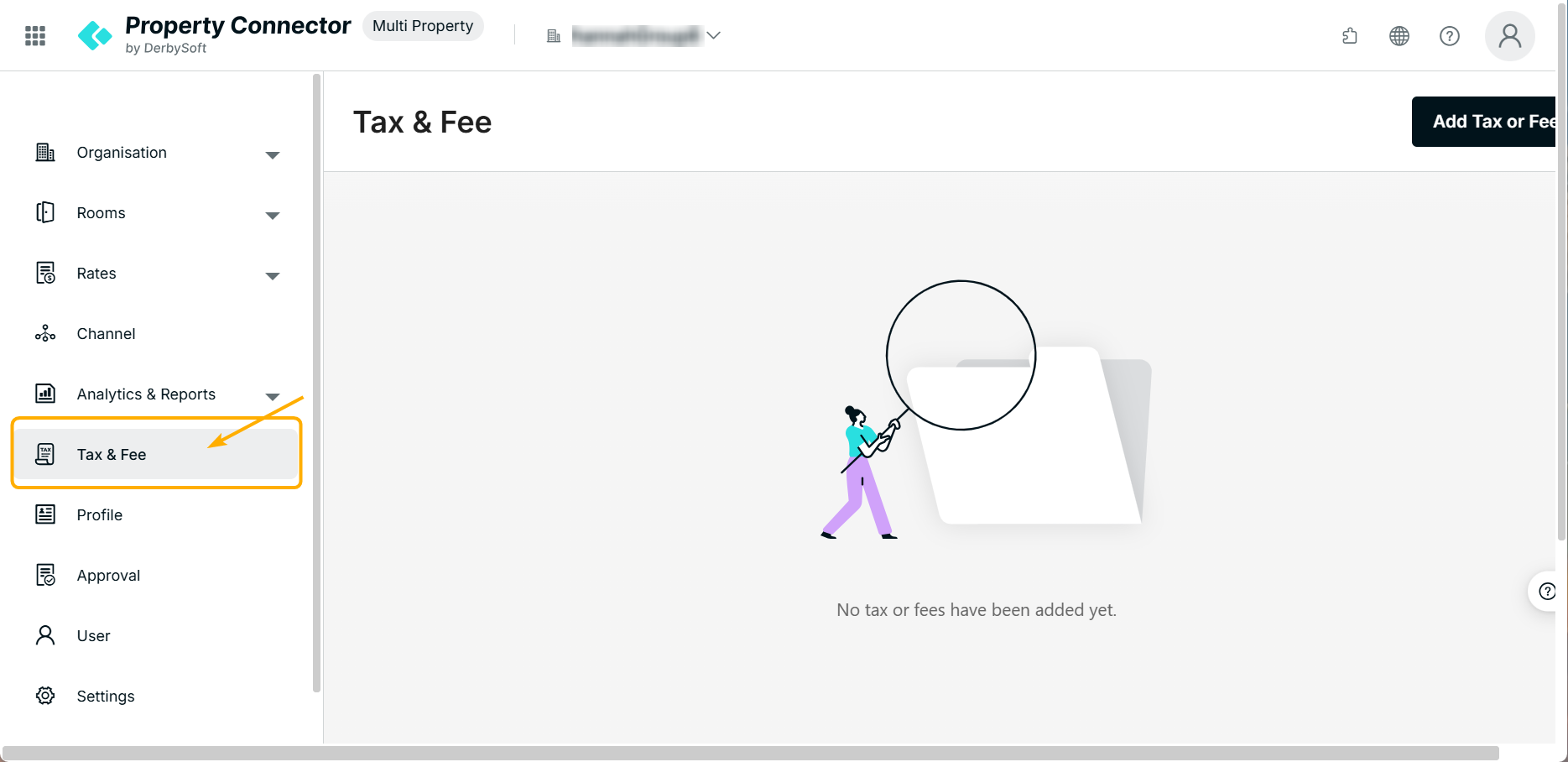
- Step 1: Go to the Multi Property Tax & Fee Page
- Step 2: Add a Tax or Fee
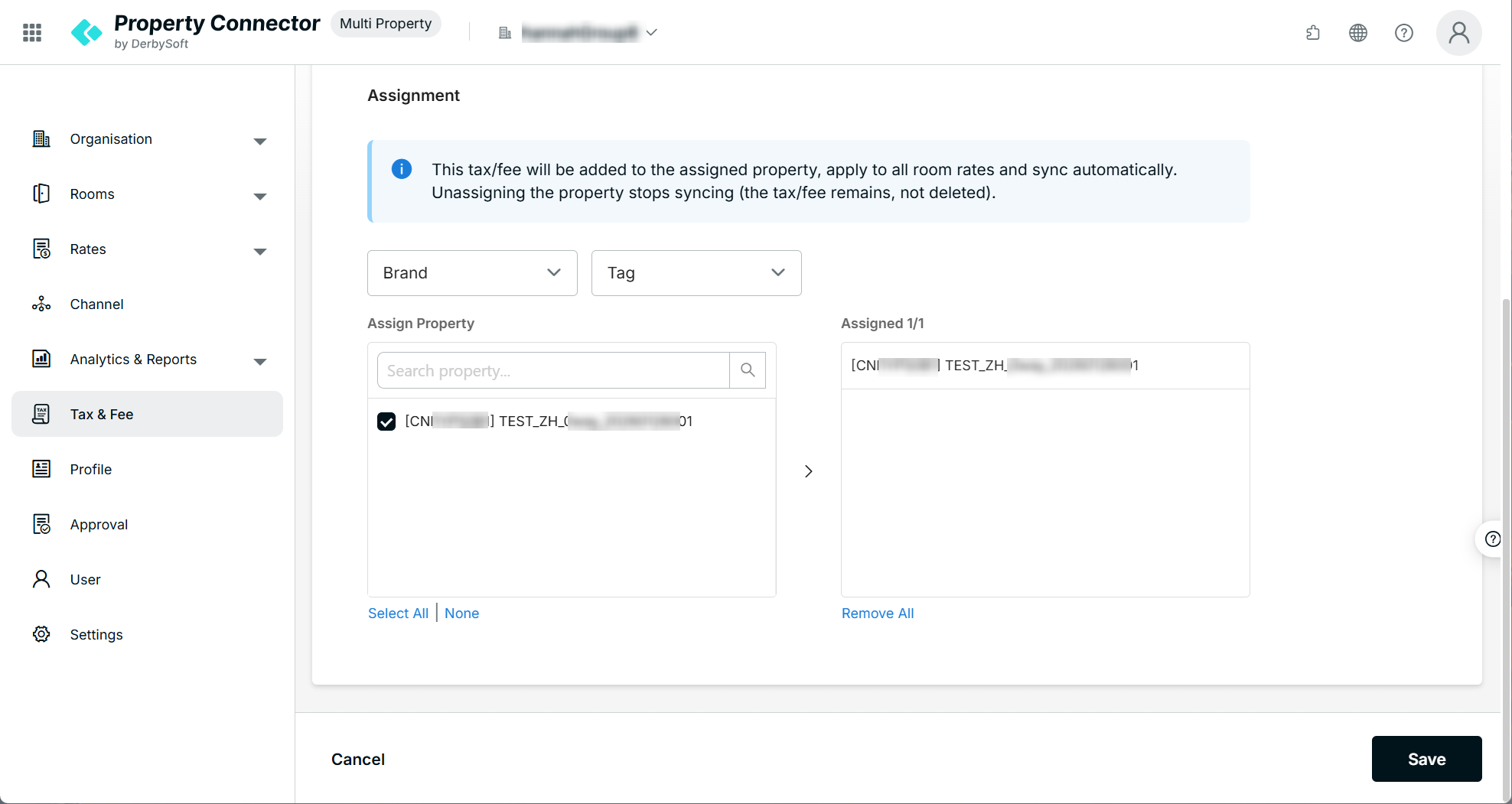
- Step 3: Assign the Tax or Fee to Properties
- Step 4: View Added Taxes or Fees
- Step 5: Check Rates Adjustments in the Calendar
- Important Notes
Overview
The Multi Property Tax & Fee feature allows property groups to create and manage taxes or fees centrally and apply them to multiple properties at once.
Once assigned, the tax or fee will automatically apply to the selected properties and sync with the calendar rates. You can also view how the adjustment affects property rates directly in the calendar.
Step 1: Go to the Multi Property Tax & Fee Page
This page allows you to create and manage tax or fee settings that can be applied to multiple properties in your property group.
Step 2: Add a Tax or Fee
Click Add Tax or Fee to create a new tax or fee configuration.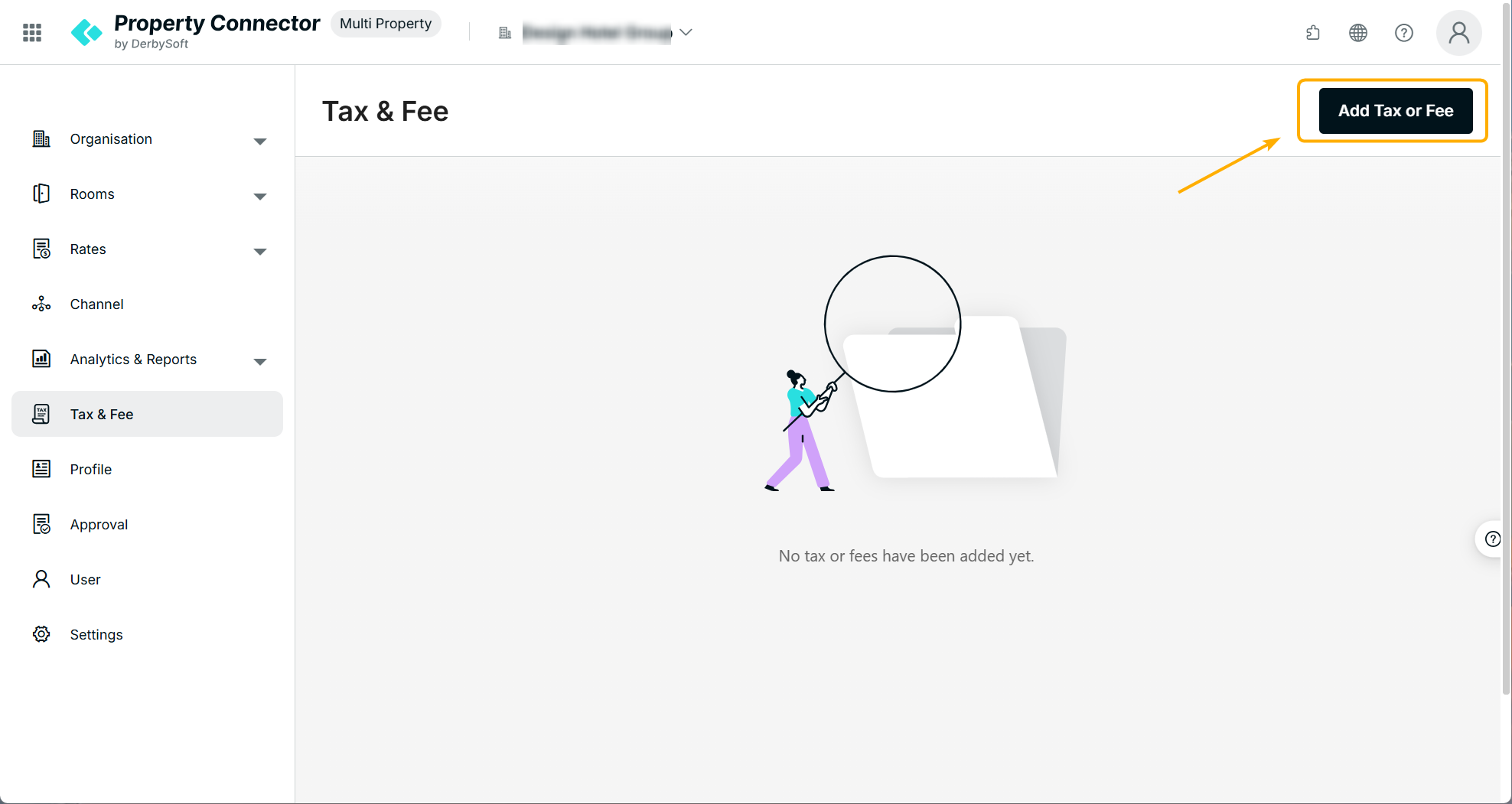
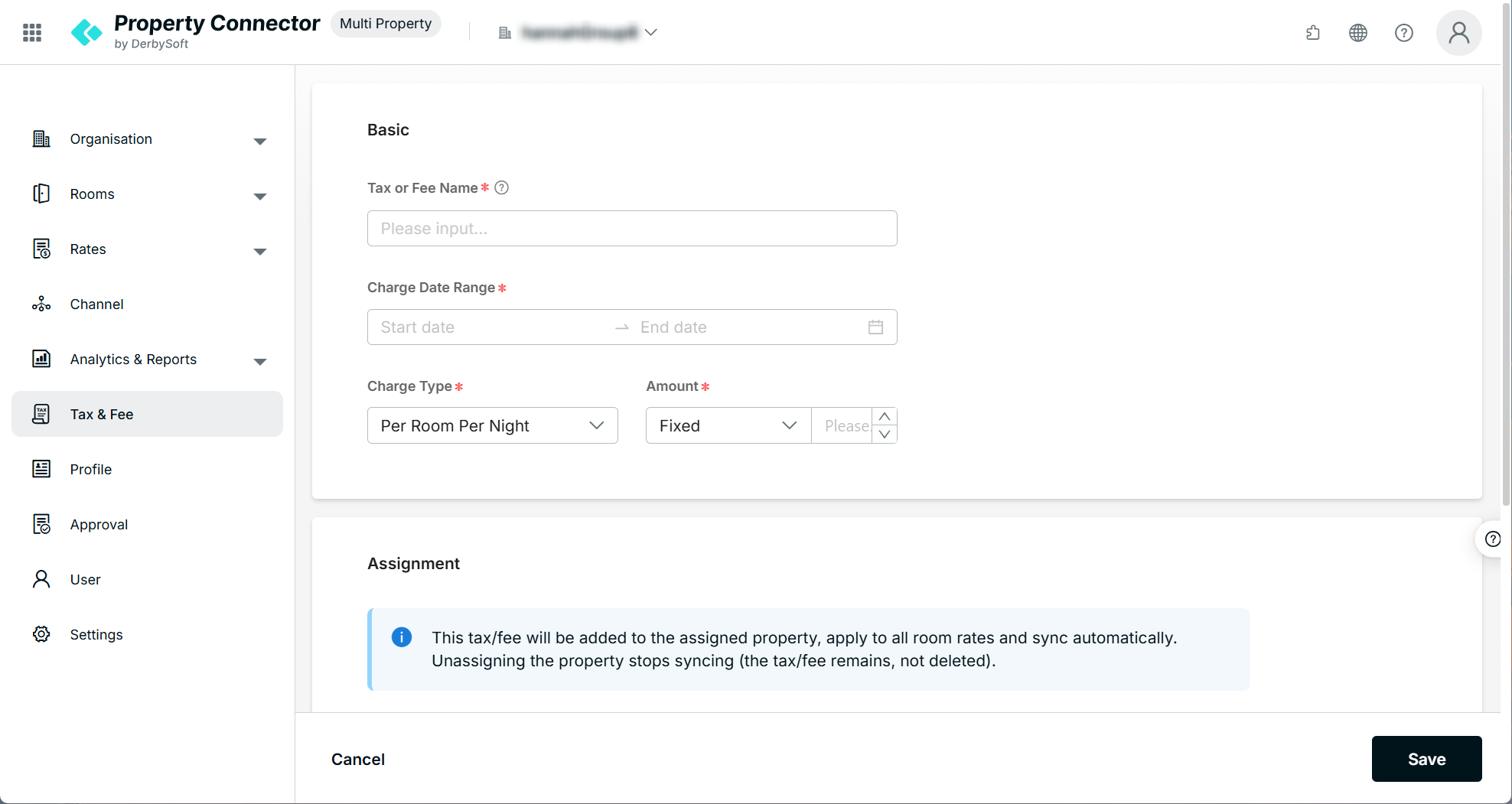
Basic Information
- Tax or Fee Name
- Recommend to use a unique name for easy identification.
- The last character of the name cannot be a number.
- Charge Date Range
- Charge Type
Select how the tax or fee will be charged. Supported options include:- Per Room Per Night
- Per Person Per Night
- Per Room Per Stay
- Per Person Per Stay
- Amount
You can choose one of the following formats:- Fixed amount (for example, $10 per night)
- Percentage (for example, 10% of the room rate)
Step 3: Assign the Tax or Fee to Properties
The Assignment section allows you to select which properties the tax or fee should apply to. This step is optional during setup, and properties can also be assigned later.
- Select the properties you want to assign.
- Click Save.
Step 4: View Added Taxes or Fees
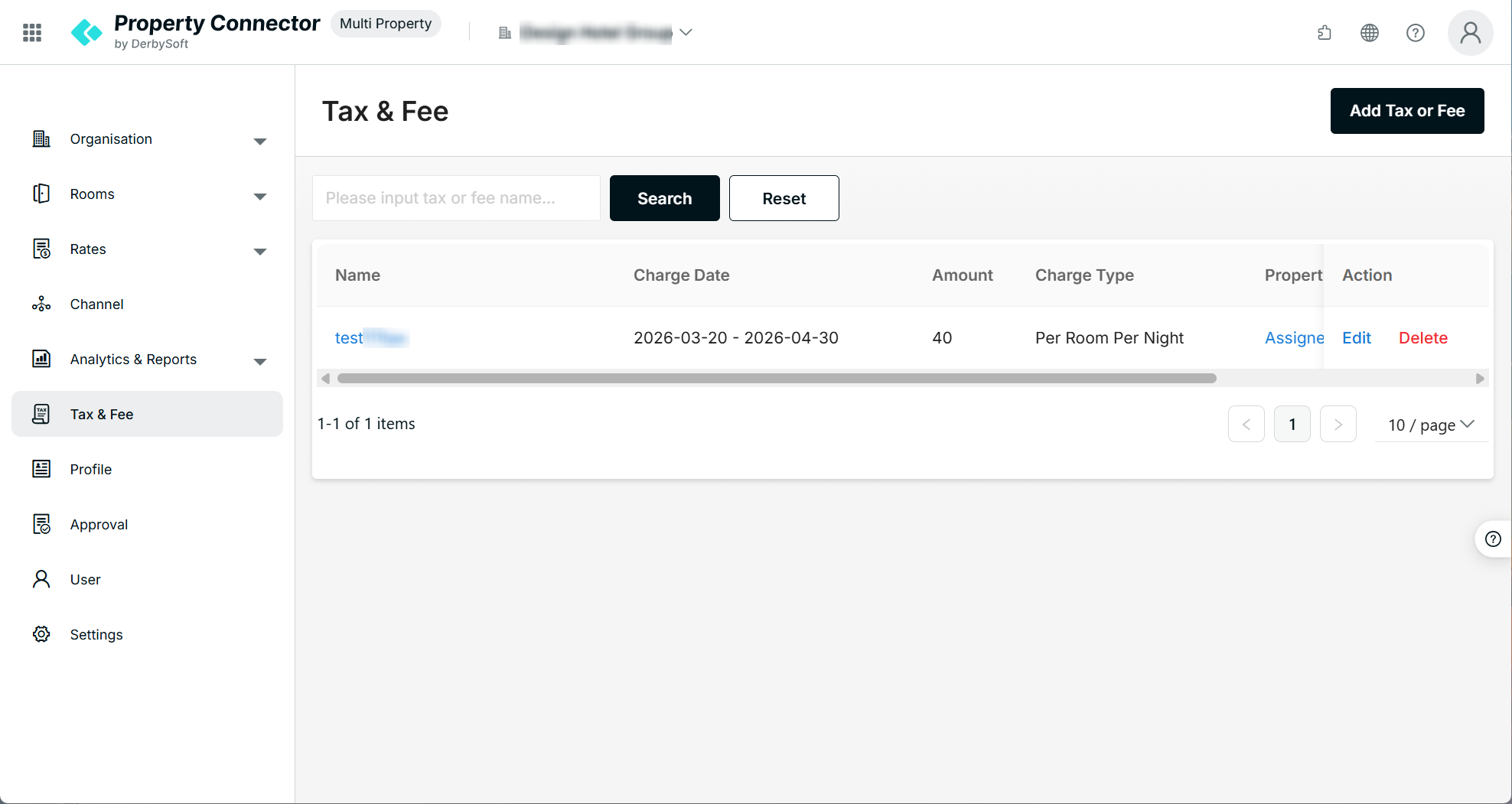
After saving, the tax or fee will appear in the Tax & Fee list tab.
From this list, you can view and manage all configured taxes and fees for your property group.
Step 5: Check Rates Adjustments in the Calendar
To confirm that the tax or fee has been applied to your properties:
- Go to the Calendar.
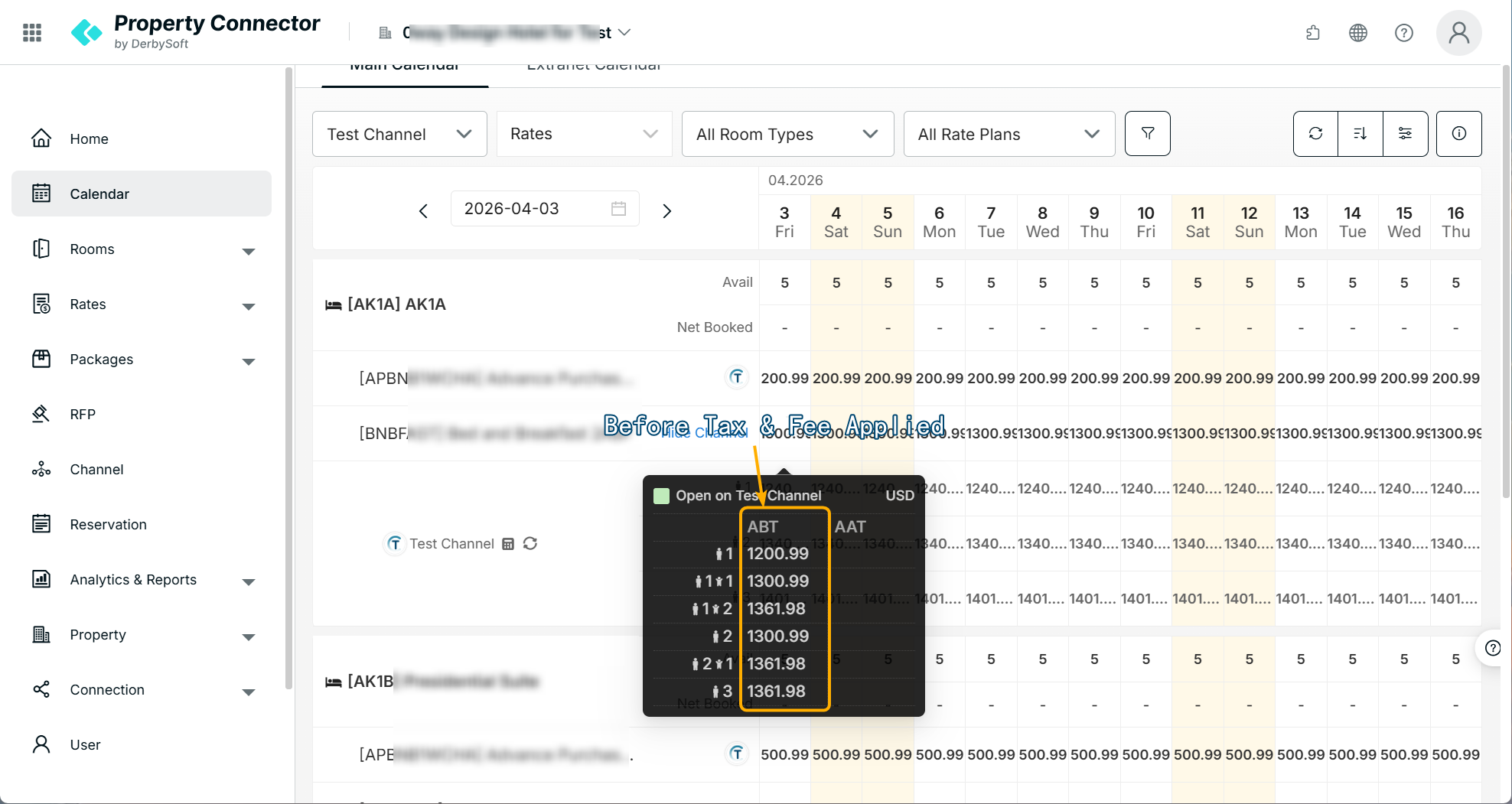
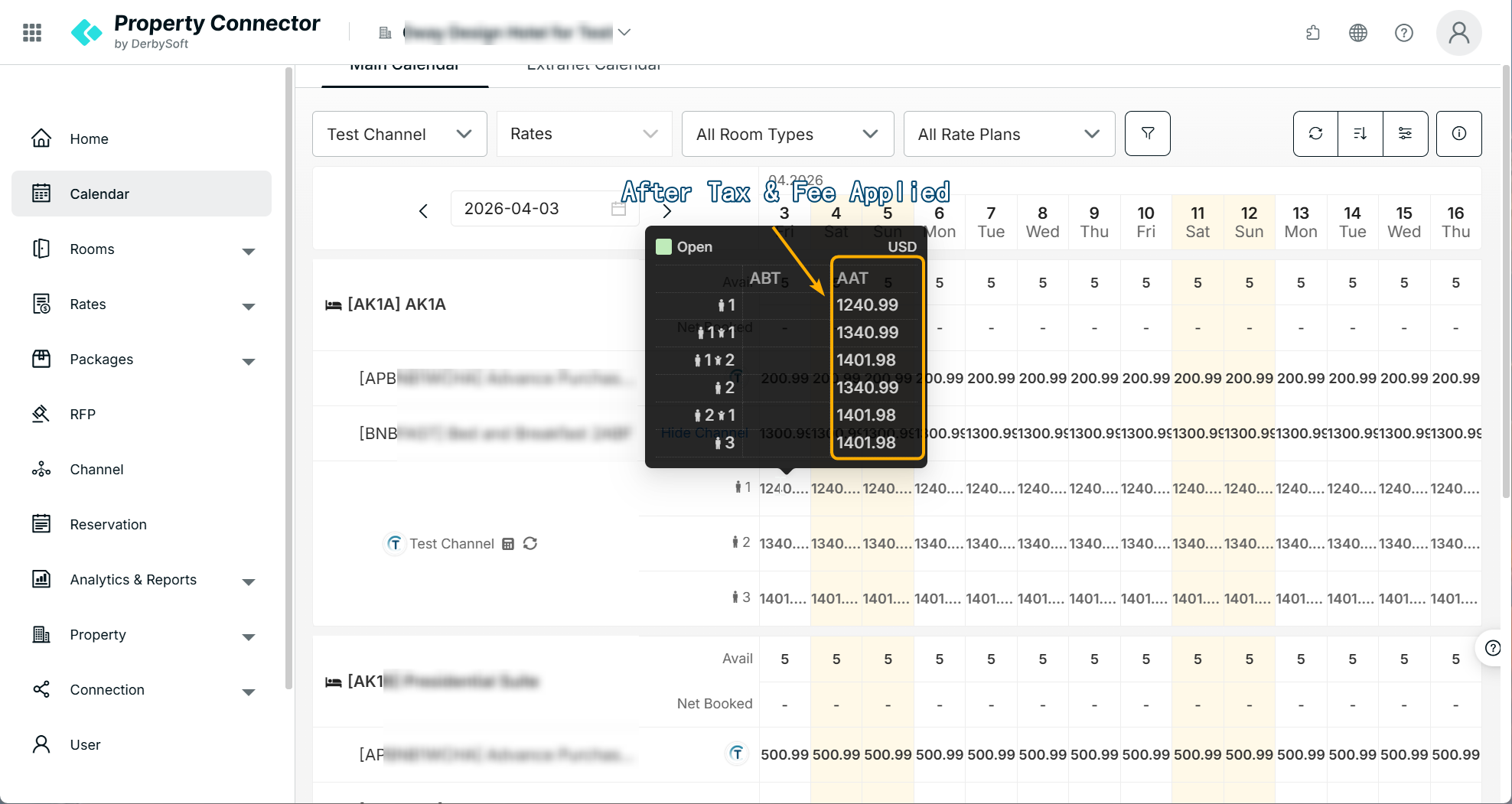
- Locate the AAT column.
The AAT column shows the adjusted rates after the tax or fee has been applied.
This allows you to quickly verify that the tax or fee is correctly synced across the assigned properties.
Important Notes
When using the Multi Property Tax & Fee feature, the following behaviors apply across different portals.
Group Fees in the Property Portal
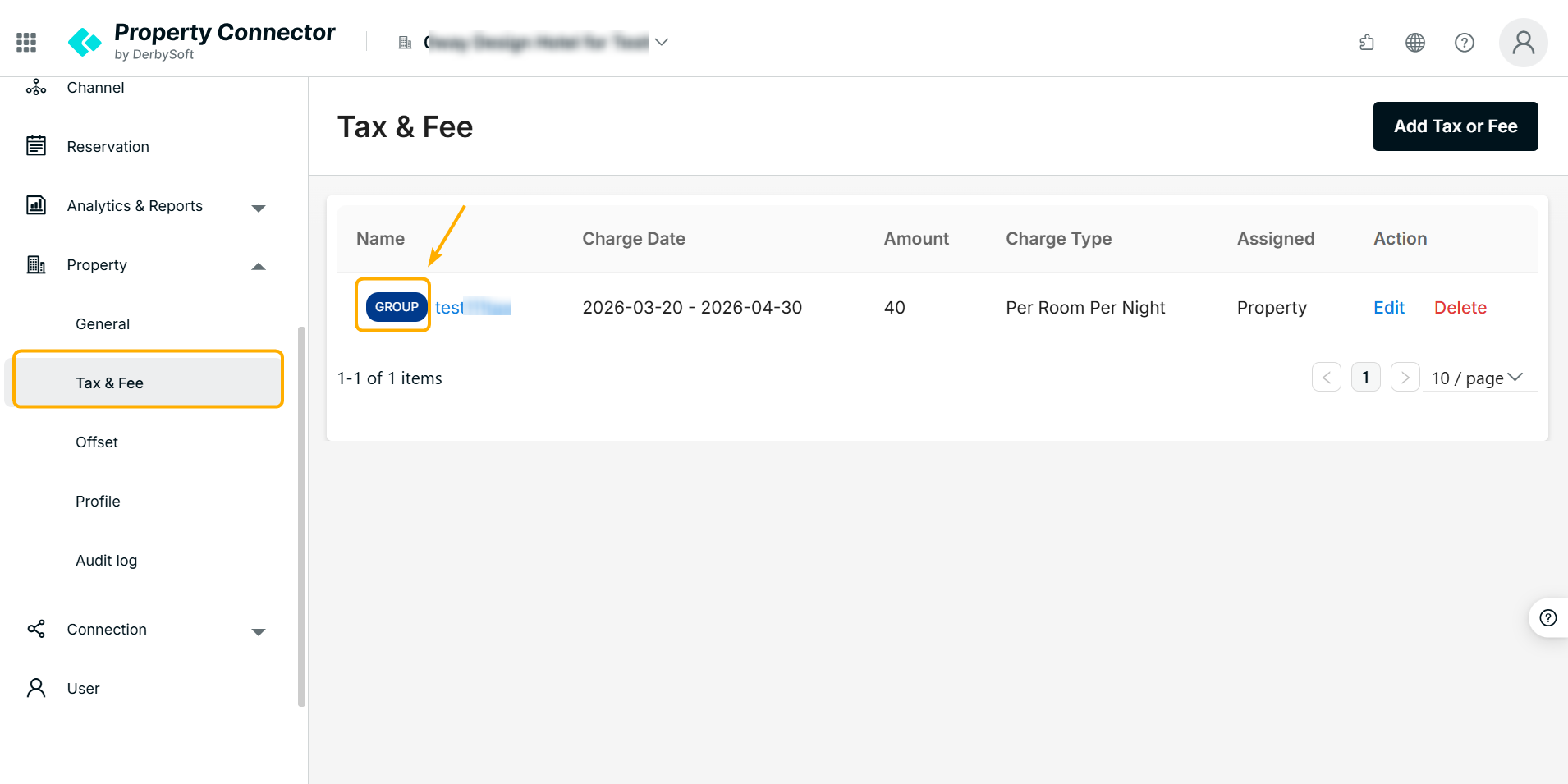
In the Property Tax & Fee list, you can see taxes or fees assigned from the Multi Property portal.
- These fees will display a “Group” label.
- If the property had already created a fee with the same name before the group assignment, the existing fee will not be overwritten.
Behavior After Unassigning a Property
If a property is unassigned from a group tax or fee:
- The tax or fee remains in the property.
- The Group label will be removed.
- Any future updates made at the group level will no longer affect the property.
Deleting a Group Fee
If a tax or fee is deleted in the Multi Property portal:
- The fee will also be deleted from all assigned properties.
Please confirm that the fee is no longer needed before deleting it.
Did you find it helpful? Yes No
Send feedback